
Fix Elementor 500 Server Error (12+ Solutions)
You’ve spent an hour getting a page exactly right in Elementor. You click Update, and instead of the green “Saved” message, a red box pops up: “Elementor 500 Server Error”. It usually says, Server error (500 internal server error). Or maybe you click Edit with Elementor and the loading screen just spins forever.
The worst part is that the message tells you nothing. No reason, no hint, no next step.
In this guide, we’ll start with the one fix that solves this error for most people. If that doesn’t work for you, we’ll walk you through 11 more fixes, starting with the quickest and moving to the more technical ones. Further down, you’ll also learn what the error actually means, why it happens, and how to stop it from coming back.
- Here’s the good news. Your designs are stored in your WordPress database, so they are almost always safe.
The 500 error is one of the most common Elementor problems, and in most cases you can fix it yourself without hiring a developer. And if the problem isn’t the regular Elementor error, you can still solve it with our step-by-step guide in this blog.
Before You Start
Take five minutes to prepare. Some of the fixes below delete data from your database or edit core WordPress files, so a little preparation protects you if something goes wrong.
Take a full backup: Back up both your files and your database. Most hosts have a one-click backup tool in the control panel. If yours doesn’t, a free plugin like UpdraftPlus does the job. Download a copy to your computer, not just to the same server.
Use a staging site if possible: Many managed WordPress hosts do staging environments. If your host offers it, test the fixes there first. This matters most for business sites and WooCommerce stores, where downtime costs real money.
Have your access ready: You’ll need some or all of these. First, your WordPress admin login. Then your hosting control panel. Then FTP or File Manager access. And a plain text editor or code snippets. Also collect the elementor versions. You can get it from Elementor, then System Info. Other than admin access, most of the others are optional.
Important: Don’t lose your add-on widgets! Several fixes ask you to deactivate plugins to find a conflict. Be careful here. If you deactivate an Elementor add-on like Essential Addons, ElementsKit, or JetElements and then save a page, the widgets from that add-on will disappear from the page.
While testing with add-ons turned off, only check whether the editor loads or the error changes. Don’t save important pages. If widgets have already disappeared, open the page in Elementor, click the History icon, go to the Revisions tab, and restore a version from before the problem.
How to Fix the Elementor 500 Server Error
If you see the 500 error when you click Update or Publish, start here. Too many post revisions are the most common cause of this error when saving in Elementor.
Fix 1 – Delete revisions with WP Sweep (easiest and most popular)
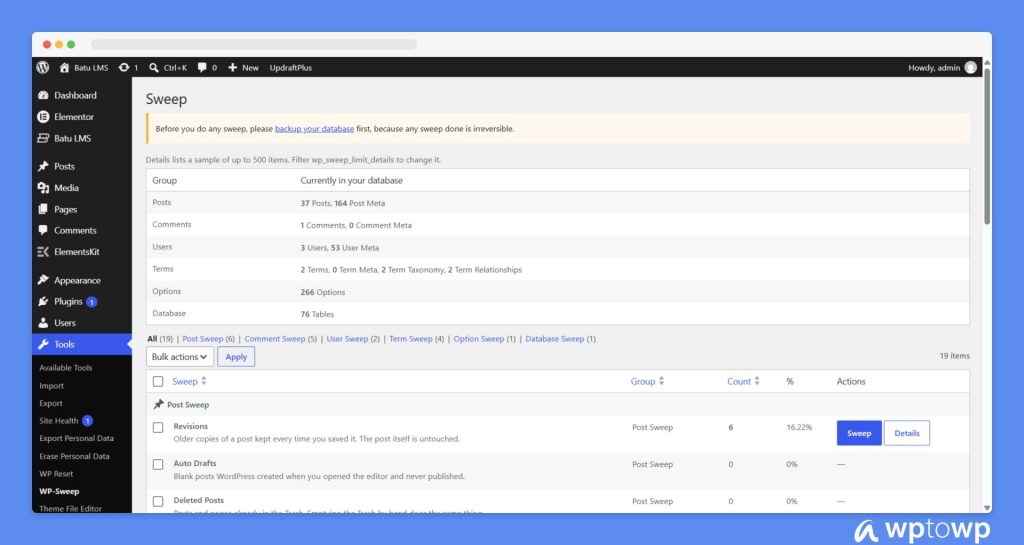
Keep the Elementor 500 error page as it is. Open wp-admin in a new tab. Then install and activate the WP Sweep plugin. Then follow the given steps.
- Go to Plugins > Add New, search for WP Sweep, then install and activate it. (Done, hopefully as above)
- Go to Tools > Sweep.
- Find the Post Sweep section.
- Next to Revisions, click Sweep. You’ll see how many revisions were deleted.
- Open your page in Elementor again and click Update.
WP Sweep uses WordPress’s own delete functions, so it cleans up related data properly instead of just deleting database rows.
Once done, come back to the Elementor 500 error page and try saving changes. It will save, hopefully. Most of the case, the page will not give the Elementor 500 error anymore.
We also made a video with the Elementor 500 error solutions. Check the above video, in which we have used the WP-Sweep plugin to solve the issue.
Additional Option – Use WP-Optimize
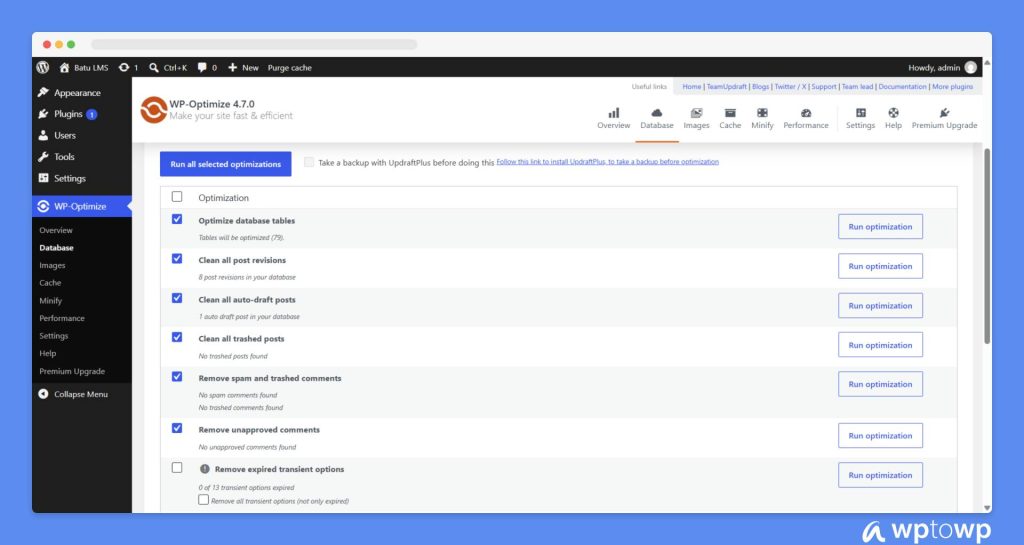
WP Sweep required update version of PHP. So, if your site is on an older PHP version, WP Sweep may not get activated. In that case, you can use the WP-Optimize plugin to solve the Elementor 500 server error. Moreover, in a few cases, you may already be using WP-Optimize.
The task is the same! Deleting the revisions. Follow the given steps, and it should solve the Elementor error on your website. WP-Optimize also optimizes your database tables, which can make your whole site a little faster.
Go to WP-Optimize > Database. Then Tick Clean all post revisions. Click Run optimization. Go back to Elementor and try saving again.
It’s supposed to fix the issue and you should be able to save the same page without the error now. Deleting old revisions fixes the error today. Limiting them stops it from returning in a few months.
- Open wp-config.php in your site’s root folder using File Manager or FTP.
- Find the line that says /* That’s all, stop editing! Happy publishing. */
- Just above that line, add: define( ‘WP_POST_REVISIONS’, 5 );
- Save the file.
The number is how many revisions WordPress keeps for each page. A value between 3 and 10 works well for most sites. You still get an undo history, but your database stays lean. Try this only if you are an expert.
Editorial Tips: You can use the Minifly site enhancement plugin. It has single-click toggle options to keep each page and post revisions at 5.
Deleting revisions does not touch your published pages or your current drafts. The only thing you lose is the ability to roll back to those older versions. That’s why the backup step at the start matters.
For most people, this fixes the Elementor 500 error immediately. If you still see the error after cleaning revisions, don’t worry. Work through the fixes below in order. One of them will almost certainly solve it.
Why revisions cause the 500 error
Every time you click Update, WordPress saves a full copy of your page as a revision. Elementor pages carry a lot of data, because every section, column, and widget setting is stored with the page.
After weeks of editing, a single page can have dozens or even hundreds of revisions. Each save then needs more memory and processing time. Eventually the server can’t finish the job in time, gives up, and returns a 500 error.
This is especially likely if the error appears on pages you’ve edited many times. It can be another case where new or short pages save fine, but your homepage or a long landing page fails. Or maybe the error started gradually, not right after an update
Other Fixes for the Elementor 500 Server Error
If cleaning revisions didn’t work, go through these fixes in order. Test Elementor after each one, so you know exactly which fix solved your problem. We have added a total of 11 more error solutions for Elementor 500.
Fix 2 – Regenerate CSS, Clear All Caches, and Reset .htaccess
There is one more way to solve the Elementor error. This takes about five minutes and clears out broken or outdated files that can trigger the error. Regenerate Elementor’s files and sync the latest update. Also clear every cache layer.
- Go to Elementor > Tools > General.
- Click Regenerate Files & Data (called Regenerate CSS & Data in some versions).
- On the same page, click Sync Library.
Most people clear one cache and forget the others. Clear all of them. You can use LiteSpeed Cache, W3 Total Cache, or any other popular plugin. Remove the server, CDN and browser cache too.
Next, reset your .htaccess file. This step matters most if your whole site shows a 500 error, not just the editor. A corrupted .htaccess file can take down every page.
- Open File Manager or connect with FTP and go to your site’s root folder.
- Rename .htaccess to .htaccess_old. (If you don’t see it, turn on “Show hidden files.”)
- Log in to WordPress and go to Settings > Permalinks.
- Don’t change anything. Just click Save Changes. WordPress creates a fresh .htaccess file.
If WordPress can’t create the file, create a new .htaccess file yourself with the default content. If your old file had custom rules, copy them back from the .htaccess_old file one at a time and test after each.
# BEGIN WordPress
RewriteEngine On
RewriteRule .* - [E=HTTP_AUTHORIZATION:%{HTTP:Authorization}]
RewriteBase /
RewriteRule ^index\.php$ - [L]
RewriteCond %{REQUEST_FILENAME} !-f
RewriteCond %{REQUEST_FILENAME} !-d
RewriteRule . /index.php [L]
# END WordPress
Fix 3 – Check the Error Logs to Find the Exact Cause
This fix is technical and we recommend you do it only if you are an expert. The 500 message hides the real problem, but your error logs usually name it directly. Checking them can save you from trying every fix blindly. Turn on WordPress debug logging if not yet. Then try to save the page again.
- Open wp-config.php.
- Find the line define( ‘WP_DEBUG’, false ); and replace it with the code below.
- Save the file.
- Go back to Elementor and repeat the action that causes the error.
- Open /wp-content/debug.log in File Manager.
define( 'WP_DEBUG', true );
define( 'WP_DEBUG_LOG', true );
define( 'WP_DEBUG_DISPLAY', false );
WP_DEBUG_DISPLAY false is the line that keeps errors hidden from your visitors while still writing them to the log. Now, what to look for in the log? Scroll to the bottom for the newest entries. Here’s how to read the most common messages:
| What the log says | What it means | Go to |
| Allowed memory size of … bytes exhausted | PHP ran out of memory | Fix 4 |
| Maximum execution time of … seconds exceeded | The save took too long | Fix 6 |
| A path containing /wp-content/plugins/plugin-name/ | That plugin likely caused the error | Fix 8 |
| A path containing /wp-content/themes/theme-name/ | Your theme likely caused the error | Fix 9 |
| PHP Fatal error: Uncaught Error: Call to undefined function | Version mismatch or broken files | Fix 11 or Fix 12 |
Check your server error log too. Some errors happen before WordPress even loads, so they won’t appear in debug.log. In cPanel, open Metrics > Errors. On other hosts, look for “Error logs” or “Logs” in the dashboard.
Check the browser console. Press F12 in Chrome, open the Network tab, and click Update in Elementor. Look for a request shown in red with status 500. It’s usually admin-ajax.php. Click it and check the Response tab, which sometimes shows the actual error message.
When you’re done, change WP_DEBUG back to false. Leaving debug mode on can slow your site and fill your server with log files.
Fix 4 – Increase the PHP Memory Limit
Elementor is a heavy plugin. If PHP runs out of memory while loading the editor or saving a page, the server stops and shows a 500 error.
Check your current limit
Go to Elementor > System Info and find Memory Limit under the WordPress Environment section.
How much memory do you need?
You’ll find different numbers online, which is confusing. Here’s a simple guide:
| Your site | Recommended memory |
| Simple site with free Elementor | 256MB |
| Elementor Pro, add-on packs, or long pages | 512MB |
| WooCommerce store built with Elementor | 512MB or more |
Elementor’s official minimum is only 128MB, but that’s rarely enough for a real site with other plugins installed.
How to increase it
Try these methods in order until one works.
Option A: wp-config.php. Add this line above the “That’s all, stop editing” line:
define( 'WP_MEMORY_LIMIT', '256M' );Option B: php.ini or .user.ini. Add or edit this line in the file in your root folder:
memory_limit = 256MOption C: .htaccess. Add this line to your .htaccess file (works on Apache servers only):
php_value memory_limit 256MOption D: Your hosting panel. In cPanel, open MultiPHP INI Editor, choose your domain, and change memory_limit. On Hostinger, go to Advanced > PHP Configuration.
Go back to Elementor > System Info and confirm the new value shows. If it doesn’t change, your host has a hard cap. Contact support and ask them to raise it. Something like: “Please increase the PHP memory_limit for my site to 256M. Elementor is showing a 500 error when saving pages.”
Fix 5 – Increase max_input_vars
This is one of the most overlooked causes of the Elementor 500 error.
When you save a page, Elementor sends every setting of every widget to the server as a separate “input variable.” Long pages can contain thousands of them. Many servers only accept 1,000 by default. When a page goes over that limit, the server rejects the save.
Signs this is your problem
- Short pages save fine, but long ones fail
- The error started after you added more sections to a page
- Your memory limit is already high
How to fix it
Check your current value in Elementor > System Info > Server Environment > Max Input Vars. Then raise it to 3000 or 5000.
In php.ini or .user.ini:
max_input_vars = 5000In .htaccess (Apache only):
php_value max_input_vars 5000You can also change it in cPanel’s MultiPHP INI Editor. Check System Info again to confirm the new value.
Fix 6 – Increase Max Execution Time
If saving a page takes longer than the server allows, the server stops the process and returns a 500 error. Many hosts set this limit to just 30 or 60 seconds.
For Elementor, set it to 180 to 300 seconds.
In php.ini or .user.ini:
max_execution_time = 300In .htaccess:
php_value max_execution_time 300
In wp-config.php:
While you’re editing these files, also check two related limits if you upload large images, videos, or template files:
post_max_size = 128M
upload_max_filesize = 128M
Fix 7 – Use Elementor Safe Mode
Safe Mode loads the Elementor editor without your theme and without your other plugins. It’s the fastest way to learn whether the problem comes from Elementor or from something else on your site.
How to turn it on
- If the editor is stuck loading, you’ll often see an Enable Safe Mode button on the loading screen. Click it.
- Or go to Elementor > Tools > General, set Safe Mode to Enable, and save.
How to read the result
- The editor works in Safe Mode: a plugin or your theme is causing the conflict. Go to Fix 7 and Fix 8.
- The error still appears in Safe Mode: the cause is a server limit or Elementor’s own files. Go back to Fixes 3 to 5, or try Fix 10 and Fix 11.
Remember to turn Safe Mode off when you’re done testing.
Fix 8 – Find a Plugin Conflict
If the editor worked in Safe Mode, another plugin is very likely interfering with Elementor. The only reliable way to find it is to test them one by one.
- Go to Plugins > Installed Plugins.
- Deactivate every plugin except Elementor and Elementor Pro.
- Open Elementor and check whether the error is gone. (Remember the warning from the start: don’t save important pages while add-ons are off.)
- Reactivate your plugins one at a time. After each one, open Elementor and test again.
- When the error comes back, the last plugin you activated is the cause.
Test these plugins first
Some types of plugins cause Elementor conflicts far more often than others, so start with these to save time:
- Caching and optimization plugins such as WP Rocket, LiteSpeed Cache, Autoptimize, and W3 Total Cache. Their minify and combine settings can break Elementor’s scripts.
- Security plugins such as Wordfence, Solid Security, and All In One WP Security. Their firewalls can block Elementor’s save requests.
- Other page builders or large add-on packs, especially if several add-ons offer the same widgets.
If you can’t reach your dashboard
- Connect with FTP or open File Manager.
- Go to /wp-content/.
- Rename the plugins folder to plugins_off. This deactivates all plugins at once.
- Rename it back to plugins. Your plugins will now show as inactive in the dashboard.
- Reactivate them one by one from the dashboard.
Found the plugin? Here’s what to do
- Update it to the latest version. The developer may have already fixed the conflict.
- Look through its settings. For caching plugins, try excluding Elementor’s files from minification or turning off JavaScript delay.
- Contact the plugin’s developer and tell them about the conflict.
- If nothing helps, replace it with an alternative plugin that does the same job.
Fix 9 – Rule Out a Theme Conflict
Your theme can also clash with Elementor, especially older themes or themes that load their own page builder features.
- Go to Appearance > Themes.
- Activate Hello Elementor (Elementor’s own lightweight theme) or a default theme like Twenty Twenty-Five.
- Open Elementor and test.
If you can’t access the dashboard, go to /wp-content/themes/ in File Manager and rename your active theme’s folder. WordPress will switch to a default theme automatically.
If the error disappears with the new theme, your theme is the cause. Update it, contact its developer, or consider moving to Hello Elementor. It’s built specifically to work with Elementor and adds almost nothing on top.
Fix 10 – Check ModSecurity or Firewall Rules
Sometimes the problem isn’t WordPress at all. Your hosting server’s security system may be blocking Elementor.
Tools like ModSecurity scan incoming requests for anything that looks like an attack. An Elementor save request is large and full of HTML, CSS, and sometimes code snippets. To a strict security rule, that can look suspicious, so the server blocks it and returns an error.
Signs this is your problem
- The error only appears when you add certain widgets, like an HTML widget, custom code, or a form
- The error appears instantly when you click Update, without the usual delay
- Your memory and PHP limits are already high, and you’ve ruled out plugin conflicts
How to fix it
- cPanel: Look for ModSecurity under the Security section. Turn it off for your domain temporarily, then test Elementor. If the error disappears, turn it back on and ask your host to whitelist the specific rule. Don’t leave it off permanently.
- Cloudflare: Go to Security > Events and look for blocked requests to admin-ajax.php around the time of the error.
- Contact your host: They can see the exact rule being triggered.
Here’s a message you can copy and send to your host:
Hi, I’m getting a “Server Error (500)” when saving pages in Elementor on [your domain]. The error happened at [time and time zone]. Could you check the server and ModSecurity logs for that time and let me know if a rule is blocking requests to admin-ajax.php? If so, could you whitelist it for my site? Thank you.
Fix 11 – Update Elementor, Elementor Pro, WordPress, and PHP
Outdated or mismatched software is a common cause of 500 errors, especially right after an update.
Keep Elementor and Elementor Pro in sync
If you use Elementor Pro, it must work with your version of free Elementor. A common problem is updating one without the other. Go to Dashboard > Updates and update both together.
Check your PHP version
Go to Elementor > System Info to see your PHP version, then compare it with the requirements on Elementor’s official requirements page. If your PHP version is old, update it from your hosting panel. In cPanel, it’s under MultiPHP Manager. On Hostinger, go to Advanced > PHP Configuration.
Newer PHP versions are faster and more secure. But very old plugins sometimes break on new PHP, so test your site after switching.
Did the error start right after an Elementor update?
Roll back to the previous version:
- Go to Elementor > Tools > Version Control.
- Choose the version you were using before.
- Click Reinstall.
This gets your site working again while Elementor fixes the bug. Report the issue to Elementor support, and update again once a fix is released. Don’t stay on an old version for long, because updates include security fixes.
Fix 12 – Reinstall Elementor or Contact Support
If nothing else has worked, Elementor’s files may be corrupted, for example, from an update that was interrupted halfway.
How to reinstall Elementor safely
Your designs are saved in the WordPress database, not in the plugin files. Deleting and reinstalling the plugin does not delete your pages.
- Go to Plugins > Installed Plugins.
- Deactivate and delete Elementor.
- Go to Plugins > Add New, search for Elementor, then install and activate it.
- If you use Elementor Pro, download the latest version from your Elementor account and upload it under Plugins > Add New > Upload Plugin.
If your dashboard is down, you can delete the /wp-content/plugins/elementor/ folder via FTP and upload a fresh copy downloaded from WordPress.org.
When to contact support
If the error is still there, it’s time to ask for help. You’ll get a much faster answer if you send the right information the first time:
- The full text from Elementor > System Info (there’s a copy button at the bottom)
- The relevant lines from your debug.log file
- The URL of the page with the error and what you clicked
- A screenshot of the error message
- A list of the fixes you’ve already tried
Who to contact: your hosting provider for server limits, ModSecurity, and server errors. Elementor support for problems inside the editor that happen even in Safe Mode on a well-configured server.
What Is the Elementor 500 Server Error?
A 500 error, also called a “500 Internal Server Error,” means your web server tried to process a request, something went wrong, and the server couldn’t say exactly what.
In Elementor, that request is usually loading the editor or saving your page. The server starts the job, hits a problem (like running out of memory), and stops. Elementor then shows you the generic “Server Error (500 error)” message.
This is a server-side error. It doesn’t mean you did something wrong in your design. It means the server couldn’t finish the work Elementor asked it to do.
Where you might see it
- A red “Server Error (500 error)” popup when you click Update or Publish
- The Elementor editor stuck on the loading screen
- A blank white page or a plain “500 Internal Server Error” page across your whole site
- An error right after updating Elementor, Elementor Pro, or another plugin
How it differs from similar errors
You might see other error codes in Elementor. They mean different things:
| Error | What it usually means |
| 400 Bad Request | The request was malformed, often from a cache or browser issue |
| 403 Forbidden | A security plugin or firewall blocked the request |
| 500 Internal Server Error | The server failed while processing the request |
| 502 Bad Gateway | The server took too long or crashed behind a proxy or CDN |
| 503 Service Unavailable | The server is overloaded or in maintenance mode |
Why Does the Elementor 500 Error Happen?
Elementor asks more from your server than most plugins. Every section, column, and widget has dozens of settings, and Elementor processes and saves them all at once when you click Update. On a server with tight limits, that’s often the moment things break.
Here are the most common causes, with the fix for each:
- Too many post revisions. Every saved revision makes the next save heavier. This is the most common cause when saving. (Main fix)
- Corrupted cache or .htaccess file. Outdated or broken files can block requests or take down the site. (Fix 1)
- Low PHP memory limit. PHP runs out of memory while loading the editor or saving. (Fix 3)
- Low max_input_vars. Long pages send more settings than the server accepts. (Fix 4)
- Short execution time. The save takes longer than the server allows. (Fix 5)
- Plugin conflict. Another plugin, often a caching or security plugin, breaks Elementor’s requests. (Fix 7)
- Theme conflict. Your theme loads code that clashes with Elementor. (Fix 8)
- ModSecurity or firewall rules. Server security mistakes a save request for an attack. (Fix 9)
- Outdated or mismatched versions. Elementor and Pro are out of sync, or PHP is too old. (Fix 10)
- Corrupted Elementor files. An interrupted update leaves broken files behind. (Fix 11)
Quick symptom guide: Not sure where to start? Match what you see to the most likely cause:
| What you see | Most likely cause | Try first |
| Error when clicking Update | Revisions, max_input_vars, or ModSecurity | Main fix, then Fix 4 and Fix 9 |
| Editor won’t load | Memory limit or plugin conflict | Fix 3, then Fix 6 and Fix 7 |
| Only one long page fails | max_input_vars or revisions | Main fix, then Fix 4 |
| Error started after an update | Version mismatch or PHP version | Fix 10 |
| Whole site shows a 500 error | .htaccess or a fatal plugin error | Fix 1, then Fix 2 and Fix 7 |
How to Prevent the Elementor 500 Error
Once your site is working again, a few habits will keep this error from coming back.
- Limit post revisions. Add define( ‘WP_POST_REVISIONS’, 5 ); to wp-config.php, and clean your database once a month with WP Sweep or WP-Optimize.
- Keep your pages lean. Avoid placing sections inside sections inside sections. Deeply nested layouts make every save heavier. If you’re still using the old section and column layout, switch to Flexbox Containers, which need fewer elements for the same design.
- Don’t stack add-on packs. Installing three add-on plugins that all offer a slider or a tab widget adds weight and increases the chance of conflicts. Pick one and stick with it.
- Update Elementor and Pro together. Never update one without the other. For major updates, test on a staging site first.
- Choose hosting with sensible limits. For a smooth Elementor experience, look for at least 256MB of PHP memory, max_input_vars of 3000 or more, and a max execution time of 180 seconds or more.
- Keep automatic backups running. Daily backups mean any problem is a quick restore, not a disaster.
- Check System Info occasionally. Elementor flags settings that are below its recommendations in Elementor > System Info. A quick look every few months can catch problems early.
Conclusion
The Elementor 500 server error looks scary, but it’s almost always fixable. In most cases, cleaning up old post revisions solves it right away. If not, work through the other fixes in order: clear caches, check the error logs, raise your PHP limits, and then look for plugin, theme, or firewall conflicts.
The key is to go step by step and test after each change. That way, you’ll know exactly what fixed the problem and how to stop it from happening again.
Which fix worked for you? Let me know in the comments. It helps other readers who land here with the same problem.
Acknowledgment 💯💯
🐾 Images – Images in this blog have been collected from different websites, blogs, landing pages, plugin landing pages, WordPress directories, Social sites, etc
🐾 Affiliate Links – This blog contains several affiliate links. We will get a commission without charging you extra if you purchase any product through the link. You can see affiliates’ declarations here.
🐾 Data Source – All the data has been collected from various open sources like landing pages, WordPress directories, YouTube channels, etc. Data can be changed at any time.

Editorial Staff
Our editorial team consists of WordPress expert(s), analysts, content editors, writers, designers, SEO experts, outreach people, and developers! For each piece of content, a highly expert and dedicated team led by Asadullah Galib works together. We have only one motto: “We help you to make your final decisions!”